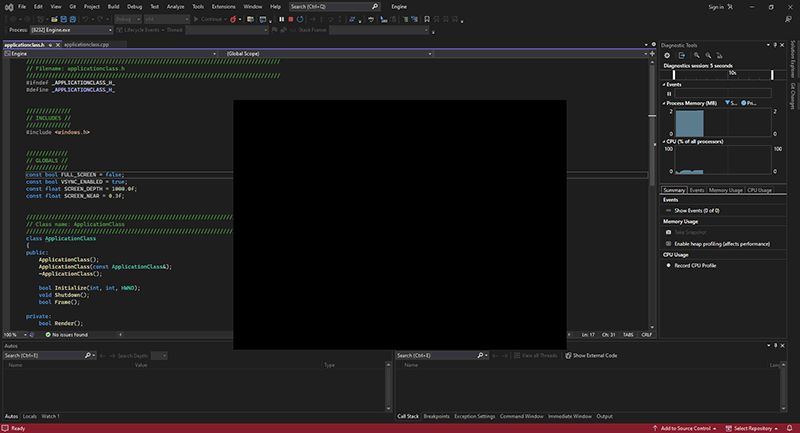
Tutorial 2: Creating a Framework and Window
Before starting to code with DirectX 11 I recommend building a simple code framework.
DirectX 11 코드를 작성하기 전에 간단한 코드 프레임워크를 하나 작성해보도록 하자.
This framework will handle the basic windows functionality and provide an easy way to expand the code in an organized and readable manner for the purposes of learning DirectX 11.
이 프레임워크는 기본적인 창 기능을 다루게 될 것이며, DirectX 11를 배우려는 목적에 걸맞게, 체계적이고 가독성 좋은 방식으로 코드를 확장하는 방식을 배우게 될 것이다.
As the intention of these tutorials is just to try different features of DirectX 11, we will purposely keep the framework as thin as possible and not build a full rendering engine.
이 튜토리얼의 목적은 DirectX 11의 다양한 기능들을 시도해보는 것이다. 따라서 우리는 프레임워크를 가능한 얇게 유지할 것이며 렌더링 엔진을 통째로 만드는 짓을 하지는 않을 것이다.
Once you have a firm grasp on DirectX 11 then you can research into how to build a modern graphics rendering engine.
DirectX 11에 대해 확실히 이해한 후에, 원한다면 최신 그래픽 렌더링 엔진을 구축하는 방법을 조사해볼 수 있을 것이다.
The Framework
프레임워크
The framework will begin with four items.
프레임워크는 네 가지 항목으로 시작한다.
It will have a WinMain function to handle the entry point of the application.
애플리케이션의 진입점을 처리하기 위해서, 프레임워크는 WinMain 함수를 포함한다.
It will also have a system class that encapsulates the entire application that will be called from within the WinMain function.
또한 프레임워크는 WinMain 함수 내에서 호출되는 전체 애플리케이션을 캡슐화하는 시스템 클래스를 포함한다.
Inside the system class we will have an input class for handling user input and an application class for handling the DirectX graphics code.
시스템 클래스는 사용자의 입력을 제어하기 위한 입력 클래스와 DirectX 11의 그래픽스 코드를 제어하기 위한 애플리케이션 클래스를 포함한다.
Here is a diagram of the framework setup
다음은 프레임워크 설정 다이어그램이다.
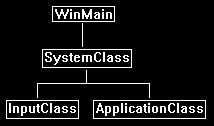
Now that we see how the framework will be setup lets start by looking at the WinMain function inside the main.cpp file.
이제 프레임워크가 어떻게 설정되는지 알았으니 main.cpp 파일 내의 WinMain 함수부터 살펴보도록 하자.
WinMain
////////////////////////////////////////////////////////////////////////////////
// Filename: main.cpp
////////////////////////////////////////////////////////////////////////////////
#include "systemclass.h"


int WINAPI WinMain(HINSTANCE hInstance, HINSTANCE hPrevInstance, PSTR pScmdline, int iCmdshow)
{
	SystemClass* System;
	bool result;


	// Create the system object.
	System = new SystemClass;

	// Initialize and run the system object.
	result = System->Initialize();
	if(result)
	{
		System->Run();
	}

	// Shutdown and release the system object.
	System->Shutdown();
	delete System;
	System = 0;

	return 0;
}
As you can see, we kept the WinMain function fairly simple.
보다시피 WinMain 함수는 매우 단순하게 유지한다.
We create the system class and then initialize it.
이제 시스템 클래스를 생성하고 초기화할 것이다.
If it initializes with no problems then we call the system class Run function.
만약 문제없이 초기화되었다면 그 다음에 우리는 시스템 클래스 실행 함수를 호출할 것이다.
The Run function will run its own loop and do all the application code until it completes.
실행 함수는 자신의 반복문을 호출한 후 완료될 때까지 모든 애플리케이션 코드를 실행시킬 것이다.
After the Run function finishes, we then shut down the system object and do the clean up of the system object.
실행 함수가 종료된 후에, 우리는 시스템 객체를 종료시킨 후에 시스템 객체에 대한 정리 작업을 수행한다.
So, we have kept it very simple and encapsulated the entire application inside the system class. Now let’s take a look at the system class header file.
따라서, 우리는 시스템 클래스 내의 전체 애플리케이션을 매우 단순하고 캡슐화된 상태로 유지할 수 있다. 이제, 시스템 클래스 헤더 파일을 살펴보도록 하자.
Systemclass.h
////////////////////////////////////////////////////////////////////////////////
// Filename: systemclass.h
////////////////////////////////////////////////////////////////////////////////
#ifndef _SYSTEMCLASS_H_
#define _SYSTEMCLASS_H_
Here we define WIN32_LEAN_AND_MEAN.
여기서 WIN32_LEAN_AND_MEAM을 정의한다.
We do this to speed up the build process, it reduces the size of the Win32 header files by excluding some of the less used APIs.
이 작업은 빌드 속도를 빠르게 하기 위해 수행되며, 자주 사용되지 않는 일부 API를 제외함으로써 Win32 헤더 파일의 크기를 줄여준다.
///////////////////////////////
// PRE-PROCESSING DIRECTIVES //
///////////////////////////////
#define WIN32_LEAN_AND_MEAN
We have included the headers to the other two classes in the framework at this point so we can use them in the system class.
이 시점에서는 프레임워크의 다른 두 클래스에 대한 헤더 파일을 포함시켰기 때문에, 이제 시스템 클래스에서 그것들을 사용할 수 있다.
//////////////
// INCLUDES //
//////////////
#include <windows.h>
Windows.h is included so that we can call the functions to create/destroy windows and be able to use the other useful win32 functions.
Windows.h가 포함되었기 때문에 이제 창을 생성하고 없애는 함수들을 호출할 수 있으며 다른 유용한 win32 함수들도 사용할 수 있다.
///////////////////////
// MY CLASS INCLUDES //
///////////////////////
#include "inputclass.h"
#include "applicationclass.h"
The definition of the class is fairly simple.
클래스의 정의는 꽤 단순하다.
We see the Initialize, Shutdown, and Run function that was called in WinMain defined here.
우리는 헤더에서 정의된 Initialize, Shutdown, Run 함수가 WinMain 함수에서 실행되는 것을 보았다.
There are also some private functions that will be called inside those functions.
그러한 함수들 내부에서 호출되는 몇몇 private 클래스도 존재한다.
We have also put a MessageHandler function in the class to handle the windows system messages that will get sent to the application while it is running.
우리는 또한 애플리케이션이 실행되는 동안 전송되는 윈도우 시스템 메시지를 제어하는 Messagehandler 함수 또한 클래스에 넣을 것이다.
And finally, we have some private variables m_Input and m_Application which will be pointers to the two objects that will handle input and the graphics rendering.
마지막으로, 각각 입력과 그래픽 렌더링을 담당하는 객체를 제어하는 포인터, m_Input, m_Applicaition을 private 변수로 선언할 것이다.
////////////////////////////////////////////////////////////////////////////////
// Class name: SystemClass
////////////////////////////////////////////////////////////////////////////////
class SystemClass
{
public:
	SystemClass();
	SystemClass(const SystemClass&);
	~SystemClass();

	bool Initialize();
	void Shutdown();
	void Run();

	LRESULT CALLBACK MessageHandler(HWND, UINT, WPARAM, LPARAM);

private:
	bool Frame();
	void InitializeWindows(int&, int&);
	void ShutdownWindows();

private:
	LPCWSTR m_applicationName;
	HINSTANCE m_hinstance;
	HWND m_hwnd;

	InputClass* m_Input;
	ApplicationClass* m_Application;
};


/////////////////////////
// FUNCTION PROTOTYPES //
/////////////////////////
static LRESULT CALLBACK WndProc(HWND, UINT, WPARAM, LPARAM);


/////////////
// GLOBALS //
/////////////
static SystemClass* ApplicationHandle = 0;


#endif
The WndProc function and ApplicationHandle pointer are also included in this class file so we can re-direct the windows system messaging into our MessageHandler function inside the system class.
WndProc 함수와 ApplicationHandle 포인터 또한 클래스 파일에 포함되며 따라서 우리는 system 클래스 내부의 MessageHandler 함수로 윈도우 시스템 메세지를 리다이렉트할 수 있다.
Now let’s take a look at the system class source file:
이제 시스템 클래스 소스 파일을 보도록 하자.
Systemclass.cpp
////////////////////////////////////////////////////////////////////////////////
// Filename: systemclass.cpp
////////////////////////////////////////////////////////////////////////////////
#include "systemclass.h"
In the class constructor I initialize the object pointers to null.
클래스 생성자에서 필자는 객체 포인터가 null을 가리키도록 했다.
This is important because if the initialization of these objects fail then the Shutdown function further on will attempt to clean up those objects.
이 부분이 중요한 이유는 만약 이 객체들의 초기화가 실패했을 시 Shutdown 함수가 객체들을 정리하려 시도할 것이기 때문이다.
If the objects are not null then it assumes they were valid created objects and that they need to be cleaned up.
객체들이 null이 아니라면, 그것들은 유효하게 생성된 객체라고 간주되어 정리 작업이 필요하다고 판단하게 된다.
It is also good practice to initialize all pointers and variables to null in your applications. Some release builds will fail if you do not do so.
모든 포인터와 변수를 null로 초기화하는 것은 좋은 프로그래밍 습관이다. 그렇지 않으면 일부 릴리스 빌드에서 실패할 수 있다.
SystemClass::SystemClass()
{
	m_Input = 0;
	m_Application = 0;
}
Here I create an empty copy constructor and empty class destructor.
아래의 예시에서 비어있는 복사 생성자와 비어있는 소멸자를 만들었다.
In this class I don’t have need of them but if not defined some compilers will generate them for you, and in which case I’d rather they be empty.
이 클래스에서는 복사생성자와 소멸자를 필요로 하지 않는다. 만약 정의하지 않는다면 몇몇 컴파일러는 자동으로 저들을 생성해주는데, 그럴 경우 차라리 빈 상태로 존재하는 것이 낫다.
You will also notice I don’t do any object clean up in the class destructor.
당신은 또한 소멸자에서 어떠한 객체도 정리하지 않았다는 것을 눈치챘을 것이다.
I instead do all my object clean up in the Shutdown function you will see further down.
대신에 나는 후술할 Shutdown 함수에서 객체 정리 작업을 수행한다.
The reason being is that I don’t trust it to be called.
왜냐하면 소멸자가 호출될 것이라 확신할 수 없기 때문이다.
Certain windows functions like ExitThread() are known for not calling your class destructors resulting in memory leaks.
ExitThread() 같은 윈도우 함수는 당신이 만든 소멸자를 호출하지 않는 것으로 알려져 있으며 이는 메모리 누수의 원인이 된다.
You can of course call safer versions of these functions now but I’m just being careful when programming on windows.
물론 지금은 이 함수들의 더 안전한 버전을 호출할 수도 있지만, 나는 윈도우에서 프로그래밍할 때 조심하는 편이다.
SystemClass::SystemClass(const SystemClass& other)
{
}


SystemClass::~SystemClass()
{
}
The following Initialize function does all the setup for the application.
후술하는 Initialize 함수는 애플리케이션을 위한 모든 설정을 수행한다.
It first calls InitializeWindows which will create the window for our application to use.
Initialize는 처음에 우리의 애플리케이션이 사용할 창을 만드는 InitializeWindows를 호출한다.
It also creates and initializes both the input and application objects that the application will use for handling user input and rendering graphics to the screen.
InitializeWindows는 또한 사용자의 입력을 처리하고 그래픽을 스크린에 렌더링하는 input 객체와 application 객체를 생성하고 초기화한다.
InitializeWin
bool SystemClass::Initialize()
{
	int screenWidth, screenHeight;
	bool result;


	// Initialize the width and height of the screen to zero before sending the variables into the function.
	screenWidth = 0;
	screenHeight = 0;

	// Initialize the windows api.
	InitializeWindows(screenWidth, screenHeight);

	// Create and initialize the input object.  This object will be used to handle reading the keyboard input from the user.
	m_Input = new InputClass;

	m_Input->Initialize();

	// Create and initialize the application class object.  This object will handle rendering all the graphics for this application.
	m_Application = new ApplicationClass;

	result = m_Application->Initialize(screenWidth, screenHeight, m_hwnd);
	if(!result)
	{
		return false;
	}

	return true;
}
The Shutdown function does the clean up.
Shutdown은 정리하지 않는다.
It shuts down and releases everything associated with the application and input object.
Shutdown은 application과 input 객체에 관련된 모든 것들을 종료하고 해제한다.
As well it also shuts down the window and cleans up the handles associated with it.
마찬가지로 Shutdown은 창을 종료하고 창과 관련있는 핸들들도 정리한다.
void SystemClass::Shutdown()
{
	// Release the application class object.
	if(m_Application)
	{
		m_Application->Shutdown();
		delete m_Application;
		m_Application = 0;
	}

	// Release the input object.
	if(m_Input)
	{
		delete m_Input;
		m_Input = 0;
	}

	// Shutdown the window.
	ShutdownWindows();

	return;
}
The Run function is where our application will loop and do all the application processing until we decide to quit.
Run 함수는 우리가 종료할 때까지 반복문을 실행하며 애플리케이션 프로세스를 실행한다.
The application processing is done in the Frame function which is called each loop.
애플리케이션 프로세스는 매 반복마다 호출되는 Frame 함수에서 이루어진다.
This is an important concept to understand as now the rest of our application must be written with this in mind.
이것은 중요한 개념인데, 이제 나머지 애플리케이션을 작성할 때 이를 염두에 두어야 하기 때문이다.
The pseudo code looks like the following:
수도 코드는 다음과 같다.
while not done
check for windows system messages
process system messages
process application loop
check if user wanted to quit during the frame processing
void SystemClass::Run()
{
	MSG msg;
	bool done, result;


	// Initialize the message structure.
	ZeroMemory(&msg, sizeof(MSG));

	// Loop until there is a quit message from the window or the user.
	done = false;
	while(!done)
	{
		// Handle the windows messages.
		if(PeekMessage(&msg, NULL, 0, 0, PM_REMOVE))
		{
			TranslateMessage(&msg);
			DispatchMessage(&msg);
		}

		// If windows signals to end the application then exit out.
		if(msg.message == WM_QUIT)
		{
			done = true;
		}
		else
		{
			// Otherwise do the frame processing.
			result = Frame();
			if(!result)
			{
				done = true;
			}
		}

	}

	return;
}
The following Frame function is where all the processing for our application is done.
다음의 Frame 함수는 애플리케이션을 위한 모든 처리가 이루어지는 곳이다.
So far it is fairly simple, we check the input object to see if the user has pressed escape and wants to quit.
지금까지는 비교적 간단하다. 사용자가 ESC 키를 눌러 종료를 원했는지 입력 객체를 통해 확인한다.
If they don’t want to quit then we call the application class object to do its frame processing which will render the graphics for that frame.
사용자가 종료를 원하지 않는 경우에는 애플리케이션 클래스 객체를 호출하여 프레임 처리를 수행하게 되며, 이 과정에서 해당 프레임의 그래픽을 렌더링한다.
bool SystemClass::Frame()
{
	bool result;


	// Check if the user pressed escape and wants to exit the application.
	if(m_Input->IsKeyDown(VK_ESCAPE))
	{
		return false;
	}

	// Do the frame processing for the application class object.
	result = m_Application->Frame();
	if(!result)
	{
		return false;
	}

	return true;
}
The MessageHandler function is where we direct the windows system messages into.
MessageHandler 함수는 우리가 윈도우 시스템 메세지를 전달받아 처리하는 장소이다.
This way we can listen for certain information that we are interested in.
이를 통해 우리는 우리가 관심있는 특정 정보를 수신할 수 있다.
Currently we will just read if a key is pressed or if a key is released and pass that information on to the input object.
현재로서는 키가 눌렸는지 떼졌는지 여부를 읽어 input 객체를 통해 전달받는다.
All other information we will pass back to the windows default message handler.
다른 모든 정보는 윈도우의 기본 메세지 핸들러로 전달받는다.
LRESULT CALLBACK SystemClass::MessageHandler(HWND hwnd, UINT umsg, WPARAM wparam, LPARAM lparam)
{
	switch(umsg)
	{
		// Check if a key has been pressed on the keyboard.
		case WM_KEYDOWN:
		{
			// If a key is pressed send it to the input object so it can record that state.
			m_Input->KeyDown((unsigned int)wparam);
			return 0;
		}

		// Check if a key has been released on the keyboard.
		case WM_KEYUP:
		{
			// If a key is released then send it to the input object so it can unset the state for that key.
			m_Input->KeyUp((unsigned int)wparam);
			return 0;
		}

		// Any other messages send to the default message handler as our application won't make use of them.
		default:
		{
			return DefWindowProc(hwnd, umsg, wparam, lparam);
		}
	}
}
The InitializeWindows function is where we put the code to build the window we will use to render to.
InitializeWindows 함수는 창을 만들고 렌더링하기 위한 코드가 위치한 곳이다.
It returns screenWidth and screenHeight back to the calling function so we can make use of them throughout the application.
이 함수는 screenWidth와 screenHeight 값을 호출한 함수에 반환하여, 애플리케이션 전반에서 이를 활용할 수 있도록 한한다.
We create the window using some default settings to initialize a plain black window with no borders.
이 함수는 몇몇 기본 설정을 이용해 테두리 없이 순수히 검은색 창을 만든다.
The function will make either a small window or make a full screen window depending on a global variable called FULL_SCREEN.
이 함수는 전역 변수 FULL_SCREEN의 값에 따라 작은 윈도우를 생성하거나, 전체 화면창을 생성한다.
If this is set to true then we make the screen cover the entire user’s desktop window.
참으로 설정되어 있으면 전체 화면창을 생성한다.
If it is set to false, we just make an 800x600 window in the middle of the screen.
거짓으로 설정되어 있으면, 800x600 크기의 창을 스크린 중앙에 생성한다.
I placed the FULL_SCREEN global variable at the top of the applicationclass.h file in case you want to modify it.
나는 당신이 수정하고 싶을 경우를 상정하여 FULL_SCREEN 전역변수를 applicationclass.h 파일의 최상단에 배치했다.
It will make sense later why I placed the global in that file instead of the header for this file.
나중에 왜 그 전역 변수를 이 파일의 헤더가 아닌 해당 소스 파일에 넣었는지 이해가 될 것이다.
void SystemClass::InitializeWindows(int& screenWidth, int& screenHeight)
{
	WNDCLASSEX wc;
	DEVMODE dmScreenSettings;
	int posX, posY;


	// Get an external pointer to this object.
	ApplicationHandle = this;

	// Get the instance of this application.
	m_hinstance = GetModuleHandle(NULL);

	// Give the application a name.
	m_applicationName = L"Engine";

	// Setup the windows class with default settings.
	wc.style         = CS_HREDRAW | CS_VREDRAW | CS_OWNDC;
	wc.lpfnWndProc   = WndProc;
	wc.cbClsExtra    = 0;
	wc.cbWndExtra    = 0;
	wc.hInstance     = m_hinstance;
	wc.hIcon         = LoadIcon(NULL, IDI_WINLOGO);
	wc.hIconSm       = wc.hIcon;
	wc.hCursor       = LoadCursor(NULL, IDC_ARROW);
	wc.hbrBackground = (HBRUSH)GetStockObject(BLACK_BRUSH);
	wc.lpszMenuName  = NULL;
	wc.lpszClassName = m_applicationName;
	wc.cbSize        = sizeof(WNDCLASSEX);

	// Register the window class.
	RegisterClassEx(&wc);

	// Determine the resolution of the clients desktop screen.
	screenWidth  = GetSystemMetrics(SM_CXSCREEN);
	screenHeight = GetSystemMetrics(SM_CYSCREEN);

	// Setup the screen settings depending on whether it is running in full screen or in windowed mode.
	if(FULL_SCREEN)
	{
		// If full screen set the screen to maximum size of the users desktop and 32bit.
		memset(&dmScreenSettings, 0, sizeof(dmScreenSettings));
		dmScreenSettings.dmSize       = sizeof(dmScreenSettings);
		dmScreenSettings.dmPelsWidth  = (unsigned long)screenWidth;
		dmScreenSettings.dmPelsHeight = (unsigned long)screenHeight;
		dmScreenSettings.dmBitsPerPel = 32;
		dmScreenSettings.dmFields     = DM_BITSPERPEL | DM_PELSWIDTH | DM_PELSHEIGHT;

		// Change the display settings to full screen.
		ChangeDisplaySettings(&dmScreenSettings, CDS_FULLSCREEN);

		// Set the position of the window to the top left corner.
		posX = posY = 0;
	}
	else
	{
		// If windowed then set it to 800x600 resolution.
		screenWidth  = 800;
		screenHeight = 600;

		// Place the window in the middle of the screen.
		posX = (GetSystemMetrics(SM_CXSCREEN) - screenWidth)  / 2;
		posY = (GetSystemMetrics(SM_CYSCREEN) - screenHeight) / 2;
	}

	// Create the window with the screen settings and get the handle to it.
	m_hwnd = CreateWindowEx(WS_EX_APPWINDOW, m_applicationName, m_applicationName,
				WS_CLIPSIBLINGS | WS_CLIPCHILDREN | WS_POPUP,
				posX, posY, screenWidth, screenHeight, NULL, NULL, m_hinstance, NULL);

	// Bring the window up on the screen and set it as main focus.
	ShowWindow(m_hwnd, SW_SHOW);
	SetForegroundWindow(m_hwnd);
	SetFocus(m_hwnd);

	// Hide the mouse cursor.
	ShowCursor(false);

	return;
}
ShutdownWindows does just that. It returns the screen settings back to normal and releases the window and the handles associated with it.
ShutdownWindows는 이름 그대로의 작업을 한다. 이 함수는 화면 설정을 원래대로 되돌리고, 윈도우와 그에 관련된 핸들을 해제한다.
void SystemClass::ShutdownWindows()
{
	// Show the mouse cursor.
	ShowCursor(true);

	// Fix the display settings if leaving full screen mode.
	if(FULL_SCREEN)
	{
		ChangeDisplaySettings(NULL, 0);
	}

	// Remove the window.
	DestroyWindow(m_hwnd);
	m_hwnd = NULL;

	// Remove the application instance.
	UnregisterClass(m_applicationName, m_hinstance);
	m_hinstance = NULL;

	// Release the pointer to this class.
	ApplicationHandle = NULL;

	return;
}
The WndProc function is where windows sends its messages to.
WndProc 함수는 창이 메세지를 보내는 곳이다.
You’ll notice we tell windows the name of it when we initialize the window class with wc.lpfnWndProc = WndProc in the InitializeWindows function above.
위의 InitializeWindows 함수에서 wc.lpfnWndProc = WndProc로 윈도우 클래스를 초기화할 때, 윈도우에게 해당 함수의 이름을 알려주는 것을 볼 수 있다.
I included it in this class file since we tie it directly into the system class by having it send all the messages to the MessageHandler function defined inside SystemClass.
이 클래스를 시스템 클래스와 직접 연결하기 위해, 모든 메시지를 SystemClass 내부에 정의된 MessageHandler 함수로 전달하도록 구성했기 때문에 이 클래스 파일에 포함시켰다.
This allows us to hook the messaging functionality straight into our class and keep the code clean.
이렇게 하면 메시지 처리 기능을 우리의 클래스에 바로 연결할 수 있어 코드가 깔끔하게 유지된다.
LRESULT CALLBACK WndProc(HWND hwnd, UINT umessage, WPARAM wparam, LPARAM lparam)
{
	switch(umessage)
	{
		// Check if the window is being destroyed.
		case WM_DESTROY:
		{
			PostQuitMessage(0);
			return 0;
		}

		// Check if the window is being closed.
		case WM_CLOSE:
		{
			PostQuitMessage(0);
			return 0;
		}

		// All other messages pass to the message handler in the system class.
		default:
		{
			return ApplicationHandle->MessageHandler(hwnd, umessage, wparam, lparam);
		}
	}
}
Inputclass.h
To keep the tutorials simple, I used the windows input for the time being until I do a tutorial on DirectInput (which is far superior).
튜토리얼을 간단하게 유지하기 위해 당분간은 Windows 기본 입력 방식을 사용했으며, 이후에 훨씬 뛰어난 DirectInput에 대한 튜토리얼을 다룰 예정이다.
The input class handles the user input from the keyboard.
input 클래스는 키보드를 이용한 사용자 입력을 다룬다.
This class is given input from the SystemClass::MessageHandler function.
이 클래스는 SystemClass::MessageHandler로부터 입력을 받는다.
The input object will store the state of each key in a keyboard array.
input 객체는 키보드 배열에 각 키의 상태를 저장할 것이다.
When queried it will tell the calling functions if a certain key is pressed. Here is the header:
이 객체는 요청한 함수에게 특정 키가 눌렸는지 아닌지를 알려줄 것이다. 아래는 헤더이다.
////////////////////////////////////////////////////////////////////////////////
// Filename: inputclass.h
////////////////////////////////////////////////////////////////////////////////
#ifndef _INPUTCLASS_H_
#define _INPUTCLASS_H_


////////////////////////////////////////////////////////////////////////////////
// Class name: InputClass
////////////////////////////////////////////////////////////////////////////////
class InputClass
{
public:
	InputClass();
	InputClass(const InputClass&);
	~InputClass();

	void Initialize();

	void KeyDown(unsigned int);
	void KeyUp(unsigned int);

	bool IsKeyDown(unsigned int);

private:
	bool m_keys[256];
};

#endif
Inputclass.cpp
////////////////////////////////////////////////////////////////////////////////
// Filename: inputclass.cpp
////////////////////////////////////////////////////////////////////////////////
#include "inputclass.h"


InputClass::InputClass()
{
}


InputClass::InputClass(const InputClass& other)
{
}


InputClass::~InputClass()
{
}


void InputClass::Initialize()
{
	int i;


	// Initialize all the keys to being released and not pressed.
	for(i=0; i<256; i++)
	{
		m_keys[i] = false;
	}

	return;
}


void InputClass::KeyDown(unsigned int input)
{
	// If a key is pressed then save that state in the key array.
	m_keys[input] = true;
	return;
}


void InputClass::KeyUp(unsigned int input)
{
	// If a key is released then clear that state in the key array.
	m_keys[input] = false;
	return;
}


bool InputClass::IsKeyDown(unsigned int key)
{
	// Return what state the key is in (pressed/not pressed).
	return m_keys[key];
}
Applicationclass.h
The application class is the other object that is created by the system class. All the graphics functionality in this application will be encapsulated in this class. I will also use the header in this file for all the graphics related global settings that we may want to change such as full screen or windowed mode. Currently this class will be empty but in future tutorials will contain all the graphics objects.
////////////////////////////////////////////////////////////////////////////////
// Filename: applicationclass.h
////////////////////////////////////////////////////////////////////////////////
#ifndef _APPLICATIONCLASS_H_
#define _APPLICATIONCLASS_H_


//////////////
// INCLUDES //
//////////////
#include <windows.h>


/////////////
// GLOBALS //
/////////////
const bool FULL_SCREEN = false;
const bool VSYNC_ENABLED = true;
const float SCREEN_DEPTH = 1000.0f;
const float SCREEN_NEAR = 0.3f;

We'll need these four globals to start with.

////////////////////////////////////////////////////////////////////////////////
// Class name: ApplicationClass
////////////////////////////////////////////////////////////////////////////////
class ApplicationClass
{
public:
	ApplicationClass();
	ApplicationClass(const ApplicationClass&);
	~ApplicationClass();

	bool Initialize(int, int, HWND);
	void Shutdown();
	bool Frame();

private:
	bool Render();

private:

};

#endif
Applicationclass.cpp
I have kept this class entirely empty for now as we are just building the framework for this tutorial.
나는 이 클래스를 통째로 비워놓았다. 이 튜토리얼을 진행하면서 이 프레임워크를 구축하게 될 것이다.
////////////////////////////////////////////////////////////////////////////////
// Filename: applicationclass.cpp
////////////////////////////////////////////////////////////////////////////////
#include "applicationclass.h"


ApplicationClass::ApplicationClass()
{
}


ApplicationClass::ApplicationClass(const ApplicationClass& other)
{
}


ApplicationClass::~ApplicationClass()
{
}


bool ApplicationClass::Initialize(int screenWidth, int screenHeight, HWND hwnd)
{

	return true;
}


void ApplicationClass::Shutdown()
{

	return;
}


bool ApplicationClass::Frame()
{

	return true;
}


bool ApplicationClass::Render()
{

	return true;
}
요약
So now we have a framework and a window that will pop up on the screen.
이제 우리는 프레임워크와 스크린에 띄울 창을 갖추었다.
This frame work will now be the base for all future tutorials so understanding this frame work is fairly important.
이 프레임워크는 나중에 진행할 튜토리얼들의 토대가 되므로 이 프레임워크를 이해하는 것은 아주 중요하다.
Please try the To Do exercise to make sure the code compiles and is working for you before moving on to the next tutorial.
다음 튜토리얼로 진행하기 전에 코드가 컴파일되며 의도한 동작을 하는지 확인하기 위해 실습을 하도록 하라.
If you don’t understand this frame work you should still be fine to move onto the other tutorials and they may make more sense to you later once the frame work is filled out more.
이 프레임워크를 완전히 이해하지 못하더라도, 다른 튜토리얼로 넘어가는 데에는 문제가 없으며, 프레임워크가 더 완성되면 나중에 그것들이 더 잘 이해될 수도 있다.
과제
Change the FULL_SCREEN parameter to true in the applicationclass.h header then recompile and run the program.
applicationclass.h 헤더의 FULL_SCREEN 인자를 참으로 바꾸고 다시 컴파일하여 프로그램을 실행시켜 보아라.
Press the escape key to quit after the window displays.
창의 띄워진 후 esc 키를 눌러 종료시켜 보아라.